
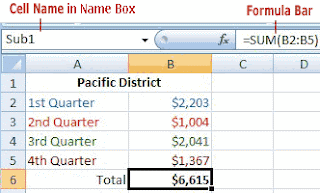
Also, when you click in a cell, if there is a cell name associated with that cell, it will display in the name box as shown in the worksheet image below.
In the example above we named the cell "Sub1" because we reference this Subtotal in a Summary worksheet.
However, after naming a cell, it seems like Excel won't let you delete or change the name! Right? Because if you click in the Name Box and type over the name or delete the name, NOTHING HAPPENS! And Excel Help doesn't seem to help.
So, how do I change or delete a cell name in an Excel spreadsheet? It's pretty easy ... it's just hidden!
So open your Excel spreadsheet and follow the directions below.
To Change a Cell Name
1. Click the Formulas tab at the top of the worksheet. Then click Name Manager on the "Defined Names" section of the ribbon. The Name Manager window displays and lists ALL of the cell names that have ever been defined in the worksheets in that workbook.2. Click on the cell name that you want to change, and click the Edit button. The Edit Name window displays.
3. Retype the name and click OK. When finished, click Close on the Name Manager window.
To Delete a Cell Name
1. Click the Formulas tab at the top of the worksheet. Then click Name Manager on the "Defined Names" section of the ribbon. The Name Manager window displays and lists ALL of the cell names that have ever been defined in the worksheets in that workbook.2. Click on the cell name that you want to delete, and click Delete button.
3. Click OK on the "are you sure" popup and then click Close on the Name Manager window.
Whew! By the way, our main tutorial website has just had an exciting makeover! Besides our popular beginner's tutorials such as Excel Math Basics: A Beginner's Guide and Beginner's Guide to Creating Charts in Excel, we've added tutorials on several more Excel functions, such as Nested IFs and Advanced Use of the COUNTIF Function.
Cheers!


77 comments:
Thanx for this it drving me crazy
That was a great help. (Excel Help was less informative, to put it gently.)
Thank you so much. I've been looking forever to get the answer to this question. God bless!
Thank you for posting..^^
Thank you very much. Like others, this has been driving me crazy for a while!
Thank you ver much. this has helped me alot.
thanks for the interesting information
Thank you so much..this has been bothering me for years...
Thanks for the information. this is updated information and applicable in Excel 2010 as well
Great practical tip, took me 2 hours of searching to find a simple solution!
thanks!
Thanks, MS shouldn't have made it so difficult to find!! you're a star!
I'm glad this post is helping others. I certainly understand as it frustrated me as well. I've never been a star before! :-D
Thank you, thanks a million!
Sometimes I feel Microsoft does this kind of things on purpose, just to drive people crazy.
Thanks for the help.
Thanks for the help :)
Thank u so much..it's a gr8 help!!
Microsoft should update their manual with your very clear, easy to understand "Help" for this issue. I've learned, Don't get mad, just Google! Thanks!
any shortcuts for naming a range of cells quickly?
If a group of cells are in rows or columns that have headings (and this only works on the cells that are adjacent to the headings!) you can use the "Create from Selection" button on the Formulas tab. Microsoft has a tutorial on it. But I'm not crazy about it because it only works for the cells that are right next to the headings and then Excel uses the headings text to create the cell names with some underscores thrown in. I am usually working on complex, small worksheets, so I guess this could be useful for someone working on gigantic sheets. Good luck.
thank you!
Thanks a lot!
Thanks a lot man!
definitely better than microsoft help ;)
Thank you... this is of great help!
Have to Hate Microsoft for making things so poorly.
THANK YOU!! This post is great... couldn't find anything in MS Help on how to remove it!
Wow, brief & to the point thank you very much!
Thank You so Much!! was quick and easy to understand
Sure did solve one of my problems. Thanks so much.
thanks for the help
Same for me, I've been into trouble for this, deleting and recreating my document with intensives copy/pastes, and it IS a huge sheet...
Thank you very much for your help =) !
Ta
Thank You. It's so weird they won't let you change the names of cells easily by just typing something else in.
I really thank you man, i was going to break my pc!!
Thank you so-so much)))!!!! this was driving me absolutely crazy so you definitely are rewarded with some major karma points for your good deed))!!!!!!!
what i hate is the fact that MS Office Help site totally doesnt help at ll
Thanks man!
Thanks , this was helpful
Thank you soooooooo much! This has driven me crazy for years!
Thanks mates !
Thank you very much. This was also driven me crazy!
Marvelous! Found it on my first click. Bless you! Excel help was hopeless :-(
very straight... and then it is very simple...
thnks
Thank u very much
thank you...
Hallelujah!!!!!!!!!!
that is so stupid.
i couldn't get the file manager technique to work so i finally resorted to saving the excel file as a csv; opening it in notepad; changing the field name; saving the file; and reopening it is excel.
how can a company as smart as ms be so arrogant and ignorant to come up with nonsensical ways of doing simple tasks!
Thanks! A very simple solution to a stupid problem
OMG, thanks for the help
Thank you master yoda !
Thankssss
Thank for help
Lol awesomely easy! Thanks for the tip to use Name Manger!
Thank you! I normally like the challenge of figuring these things out on my own and then I go to the Excel help but I could not find the answer until I ran across this site. This was very helpful.
Thanks for your help!
It has been 4 yrs and good comments from people had this problem are still yours :-D
Massive help! I was about to go postal because excel wouldn't let me edit the cell names.
THANK YOU! THANK YOU!
thumbs up, it is so helpfull
doesn't seem to be an option on a pivot table (excel on a mac) there is only "insert name"
This was so super helpful and easy to follow, I had to comment. Thank you for explaining it so clearly and simply! :D
Thanks very much,
Tricky to find, even if you're sure it does exist.
And as Nellan Bear said, "Easy to follow".
Mega thanks, like others said it was driving me crazy to delete them. :-)
Thanks!!!
Thanks
You are awesome! Thank you!!!
FINALLY WAS ABLE TO FIGURE THIS OUT WITH YOUR HELP! THANK YOU!
It has been said a million times but THANK YOU!
I was resulting to deleting entire rows/columns because of typos or redesigning the document, and I knew someone had to have the answer! This is ***MUCH*** easier.
Thank you!!!
You wouldnt believe how long i spent trying to figure out how to do this by myself. Thanks so much, your article popped up first! I shouldhve looked sooner- LOL.
Thank you !!!!!!!!!
I was basically redoing some of my simpler spreadsheets cuz of this stupid thing. Good post! I think I've read some of your tutorials too. Be merry!
Thanks a lot. It was damn so simple. Really irritated me for quite a while.
Thank you for the clear and concise instructions, very much appreciated!
Excellent. Very clear instruction. Solved my problem.
Thanks a bunch! This article is still very relevant today.
Thank you, thank you, thank you!!!!
Just what I was looking for :-D
You just saved my life!
Thanks!
Post a Comment